
Mondovo journey guide
How paths and stops work
A journey sends a sequence of messages automatically for each person. You choose who starts, how long to wait, and which message they need next. Use journeys to welcome new signups, remind customers about bookings, or follow up with people who asked about your business.
Watch the practical tutorial (1 min 10 sec) with English voiceover and captions. Learn what a journey does, then follow Maya and Alex through a welcome email, a wait, and different follow-ups.
Example: help a new signup build their first site
Maya and Alex both sign up. In this example, the audience “New signups — no site yet” contains people who have signed up but have not built a site. Keep that audience up to date as people build their sites.
1. Welcome them
Joining this audience starts the journey. Send a welcome email with the first step to build a site.
2. Give them time
Add a Wait of two days so they can try it before you follow up.
3. Check who needs help
Add a split: is the person still in “New signups — no site yet”? This checks their membership when they reach the split.
Yes: Maya still needs help
Maya has not built her site, so send “Need help building your first site?” Add a Wait before any further email.
No: Alex has already built a site
Put Stop here inside No. Alex finishes this journey without receiving an unnecessary reminder. Maya keeps going through Yes.
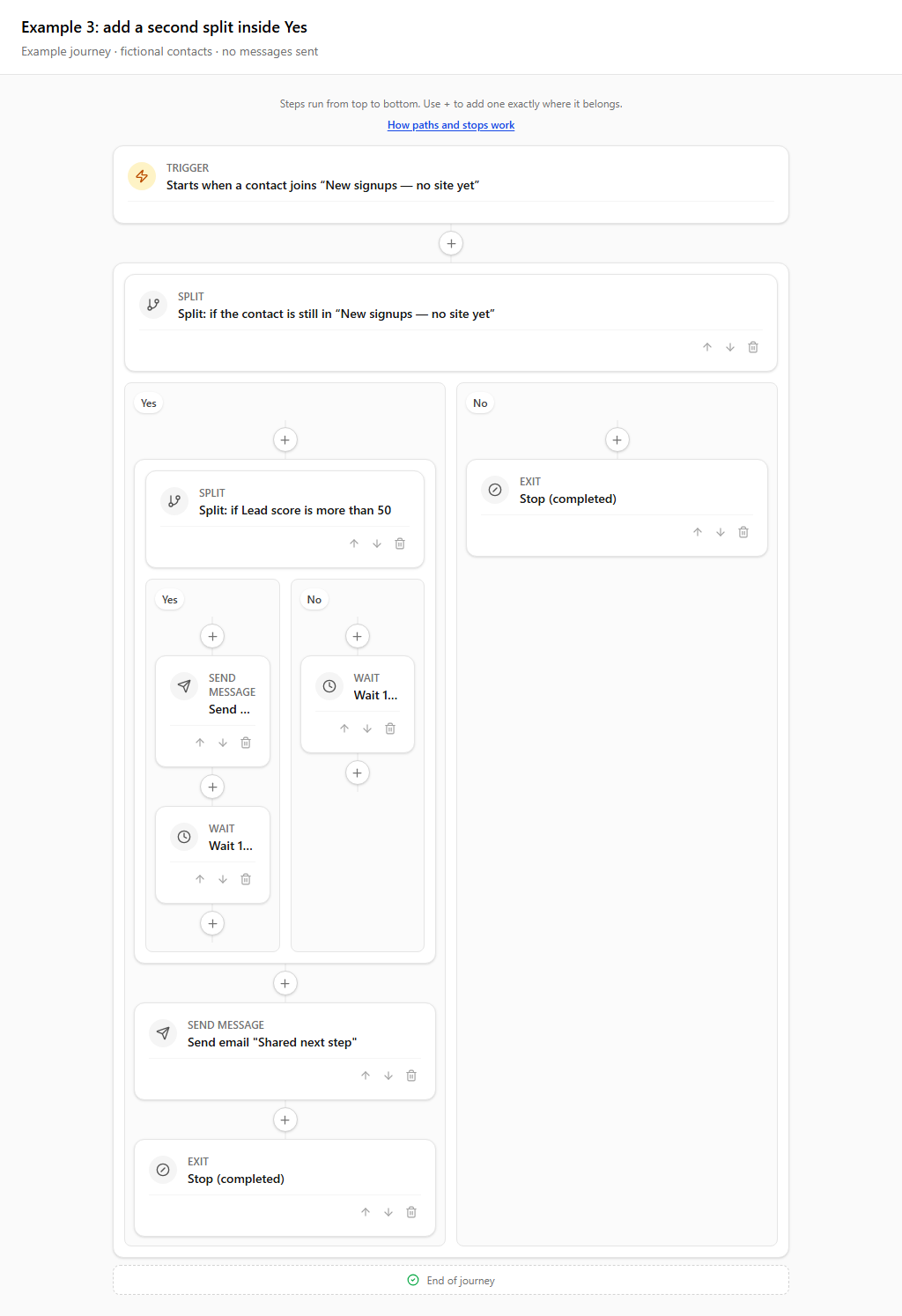
A blank No path continues to the shared steps below the split. Use Stop inside No when only that path should end. If there are no more steps to run, the journey finishes automatically without an extra Stop.
Empty paths rejoin below the split
An empty Yes or No column goes straight to the first step below the split. A person stops when they reach Stop or Goal, or when there are no more steps to run.
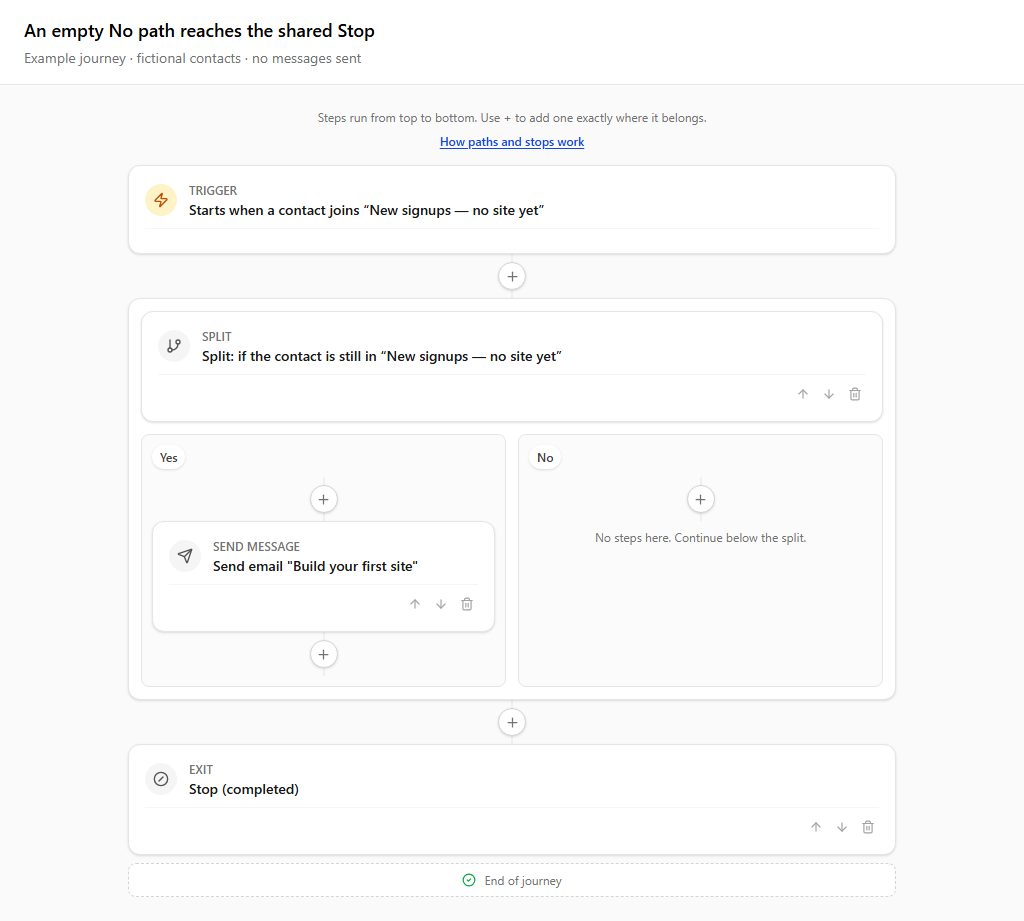
1. Add shared work below
Place a step below the split when both paths should receive it.
2. Leave a path empty
An empty Yes or No path goes straight to the steps below the split.
3. Check the next step
If it is an email, that email runs. If it is Stop or Goal, the person stops.
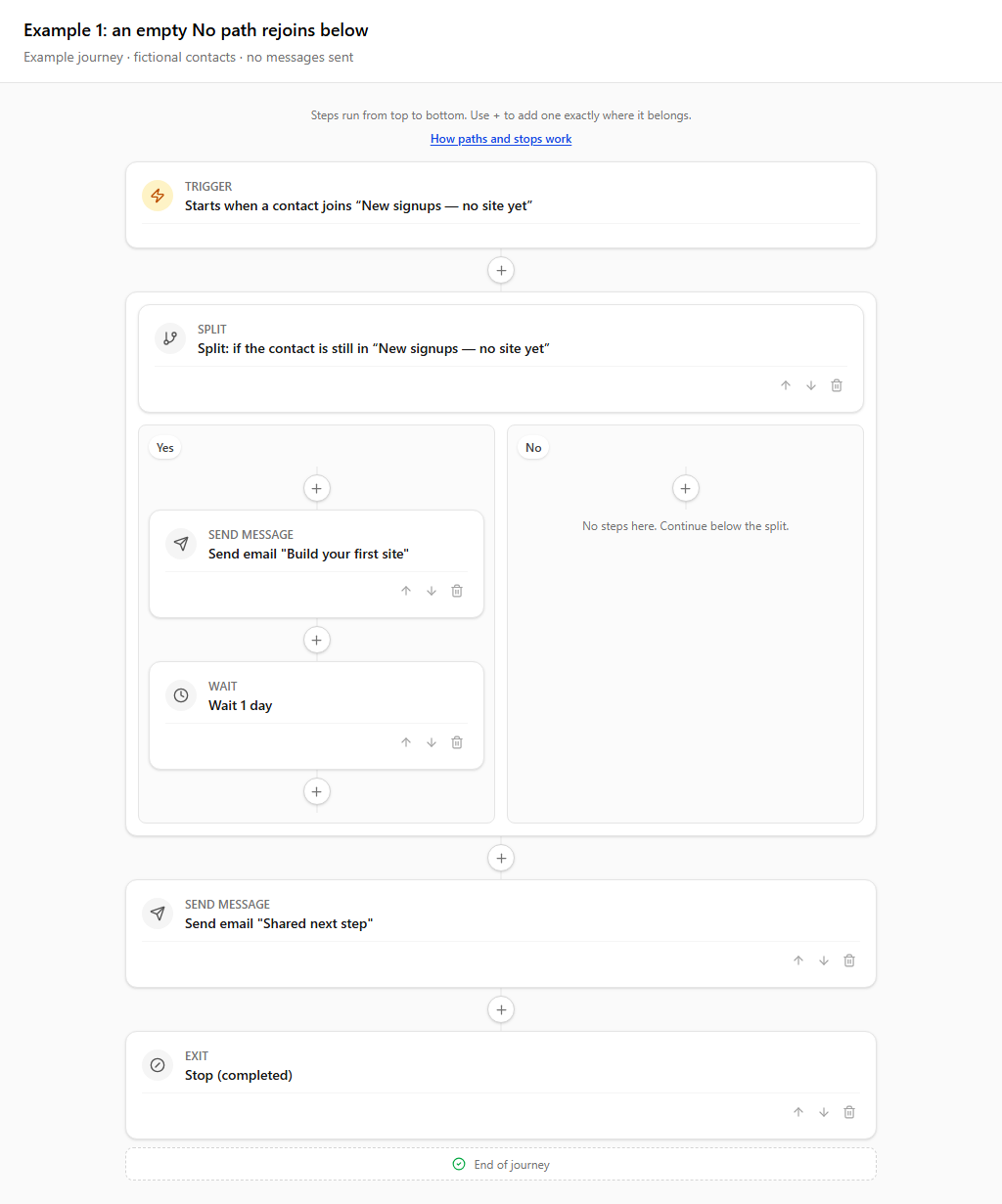
End No while Yes keeps going
If the first step below the split is Stop, an empty No path reaches it and ends without a local Stop. In the example above, that first step is an email, so No receives it. To stop No before that email, give No its own Stop inside the column.
- 1. Click the + inside the No column and choose Stop here.
- 2. Add the steps that only Yes should follow with + inside the Yes column.
- 3. Put any follow-up shared by paths that have not stopped below the split.
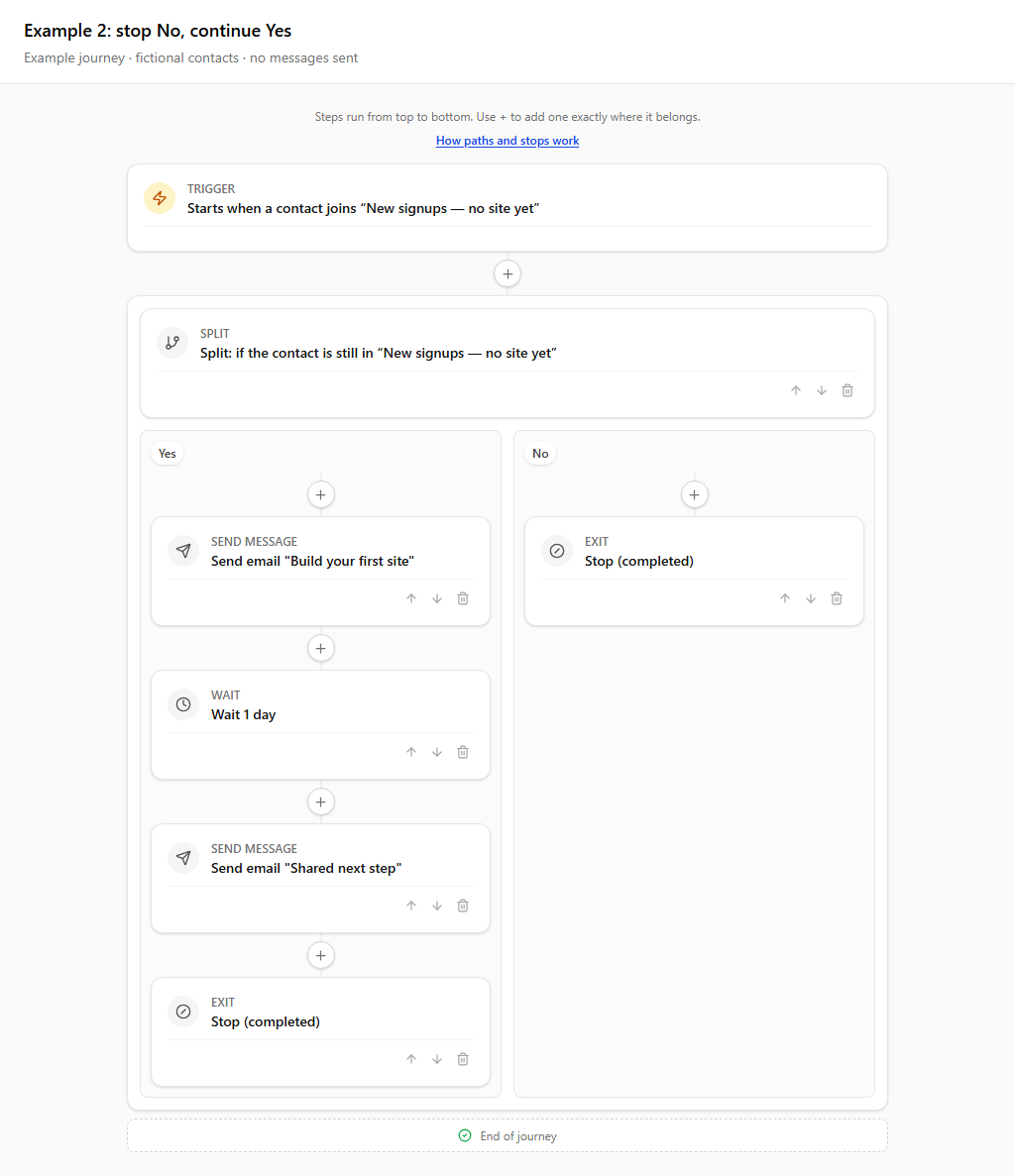
Add another split inside Yes
A path can contain another split. Its own Yes and No paths then go to the steps below that second split, unless one reaches Stop or Goal first.
- 1. Click + inside the Yes path and choose Split on a condition.
- 2. Select the second question you want to check.
- 3. Add steps to its Yes and No columns. Leave a column empty to go straight to the steps below.
- 4. Add the follow-up after the inner split when both inner paths should reach it. The outer No path remains stopped.
Leave time between follow-up emails
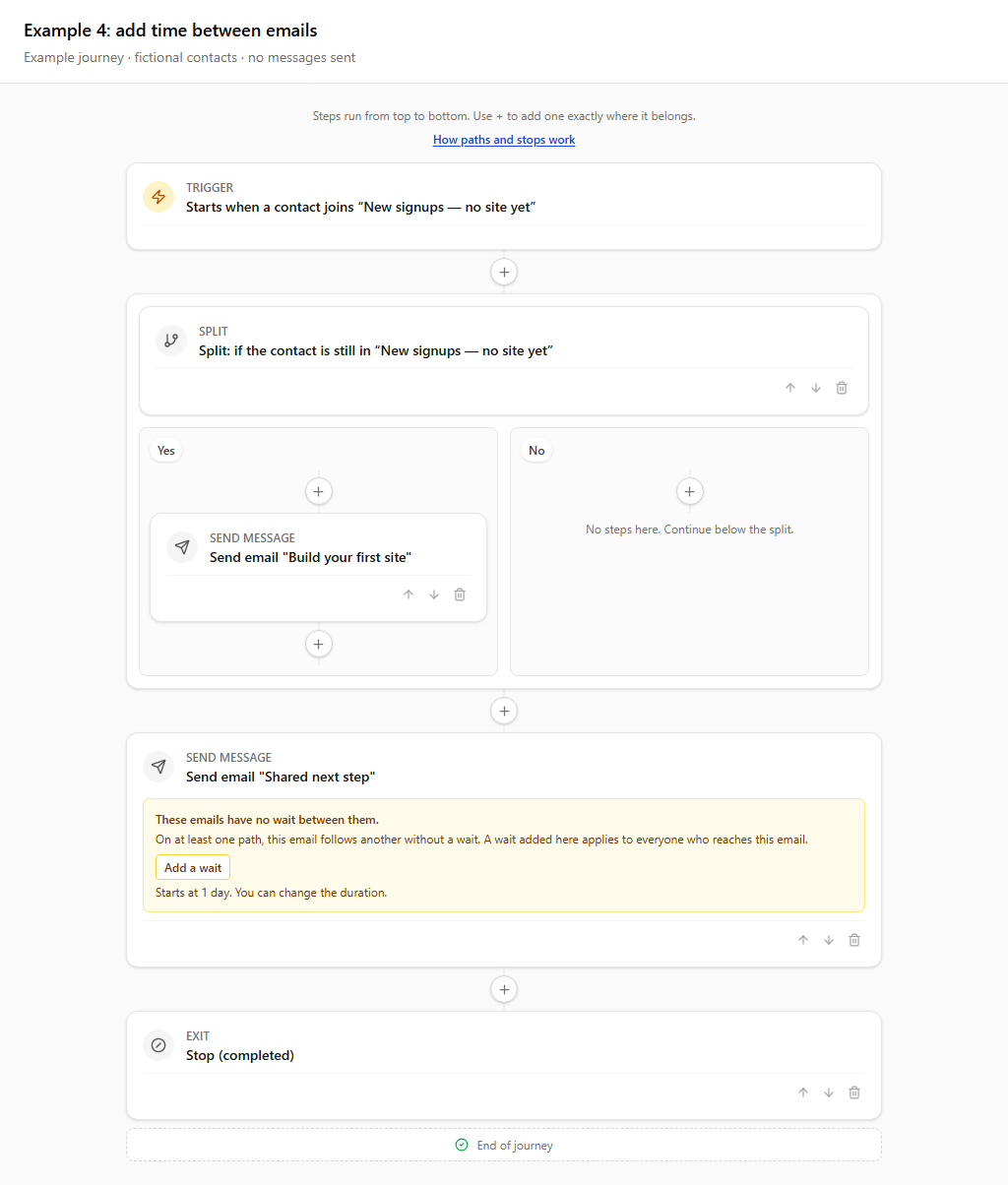
Email steps run one after another. Without a Wait, they can arrive close together. For a follow-up sequence, start with Email → Wait 1 day → Email and adjust the delay to suit the messages.
- 1. Look for “These emails have no wait between them” on the later email.
- 2. Click Add a wait. A one-day Wait is inserted immediately before that email and selected for editing.
- 3. Change the amount and minutes, hours or days in the sidebar, then click Save.
The check follows every possible path through splits and joins. A wait before a shared email applies to everyone who reaches that email, including paths that already have a wait. The warning lets you choose the right timing; it does not block saving.
Two details that prevent surprises
Adding Stop before existing steps
If you insert a Stop before steps that already exist on the same path, the builder asks you to confirm because those trailing steps will be removed. The sibling path is unchanged.
Save your changes
Click Save when you are ready. People who start after you save follow the updated journey. People already going through it finish the journey as it was when they started.